
|
<<"Mozilla Web Browser Getting Started Guide" [Main Index] "D A Goodwin (My Dad!)'s Painting Gallery">> Setting up Your First VServer04 April 2003
Vservers are a great concept that lets you create many virtual servers inside 1 GNU/Linux server. This is great for virtual hosting, lab tests, security restrictions and just playing. The Vserver concept is very efficient in terms of memory and processor use (I have 3 Vservers on this server, a cranky 380MHz K6 with 128MB RAM). There is a VServer homepage with mailing list and FAQ
Installing the softwareDownload the following files from ftp://ftp.solucorp.qc.ca/pub/vserver to somewhere under your home directory. I have shown the current latest versions that I used when setting up my VServer.
tar zxvf kernel-2.4.18ctx-12.tar.gz Become root Copy the contents of the newly created boot dir into /boot Copy the newly created lib/modules/2.4.18ctx-12/ directory to /lib/modules Update your boot loader. For lilo, edit /etc/lilo.conf by adding the following section image=/boot/vmlinuz-2.4.18ctx-12 label=linux 2.4.18ctx-12 read-only root= NB: My lilo complained that this label was too long. If necessary use a shorter name like ‘vserver’ The ‘root=’ line can be set to whatever your current kernel’s ‘root=’ line is. You can set the ‘default=’ parameter at the top of the file to your new label. Your new kernel will be booted automatically. Handy if you don’t have console access to the server. Next run /sbin/lilo for the changes to take effect. Reboot your computer Assuming everything comes up OK - Install the linuxconf-lib and linuxconf-util packages rpm -i linuxconf-lib-1.28r1-1.i386.rpm rpm -i linuxconf-util-1.28r1-1.i386.rpm Then install the vserver packages rpm -i vserver-0.18-1.i386.rpm rpm -i vserver-admin-0.18-1.i386.rpm The software is installed and now ready to be configured! Creating your first vserverA vserver’s configuration is captured in text files under /etc/vserver. However, there is a easy to use utility, newvserver, that makes creating a new vserver very easy.Run /usr/sbin/newvserver to bring up the text-mode configure tool. Then fill in the details for your new vserver. Use the arrow keys to move between lines. Tab changes between the fields and Accept / Cancel. If Tab doesn’t work (It idn’t with me using TerraTerm) then quit newvserver (escape a few times) and type: Export TERM=pcansi The re-run newvserver and your tab key should work See the screen shots for how I configured my first VServer 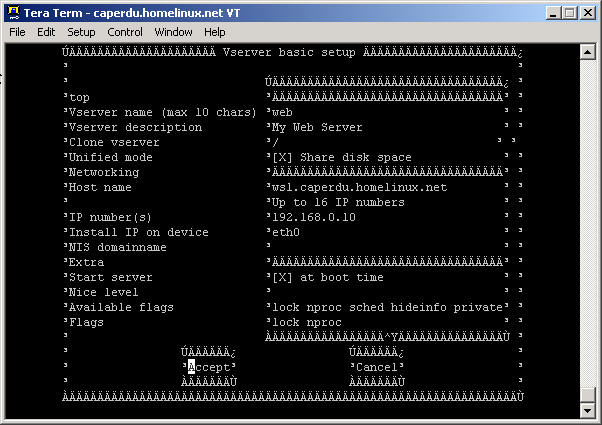  Tab onto ‘Accept’ and press Enter. Nothing will appear to happen but your VServer is being created. During this time, most of the files that make up your existing server are being copied to /vserver/ What next? Testing your vserverStart the vserver by running:/usr/sbin/vserver You should see something like the following screenshot as the server starts up. Now you can enter your vserver by running: /usr/sbin/vserver Have a look around. Try running ifconfig, top, ps –ef, df and you will see how your new server appears The new server is a copy of your original server. It probably has many packages running that you wont need in your vserver. I recommend you go and remove all the stuff you don’t need. (Like X, GNOME, etc). Setting up a webserverIf you have a web server on the real, root server you will need to ensure that it is bound to just the real servers IP address. By default it will be bound to all local IPs including those of the vservers. This means that if you point your web browser at one of the vserver IPs it is the root webserver that will respond.To remedy this, stop your root webserver /etc/init.d/httpd stop and restart it using the provided vserver-aware httpd start script /etc/init.d/v_httpd start This will stat apache bound to the root servers IP address Stop and start the vserver and the vserver’s copy of apache will bind successfully to its own IP address Vserver web1 stop Vserver web1 start [root@caperdu rc3.d]# cd /etc/rc3.d/ [r oot@caperdu rc3.d]# rm S80httpd rm: remove `S80httpd'? y [root@caperdu rc3.d]# ln -s ../init.d/v_httpd S80httpd [root@caperdu rc3.d]# ls -l S80httpd lrwxrwxrwx 1 root root 17 Jul 25 12:37 S80httpd -> ../init.d/v_httpd Why Ping doesn’t work:If you enter your vserver and try to ping something you will get the following error:[root@vserver:web1 /]ping www.yahoo.com ping: icmp open socket: Operation not permitted Vservers permissions are governed by ‘capabilities.’ These are a list of permissions that a vserver has and covers access to resources that might be dangerous in some contexts. The default vserver config created by newvserver doesn’t allow a vserver access to raw ICMP sockets. This can be changed by editing /etc/vserver/ Change the line S_CAPS="" To read S_CAPS="CAP_NET_RAW" Then start and stop the vserver, log back in and try pinging a target. All should work well. More info on capabilities Replies: 1 Comment really great explanation, thank u so much Steven said @ 07/22/2003 09:11 AM EST |
nav: home archives photos my other sites: - New York Running - ISOGA Heavy Metal Band! - Vacations in France! friends: - simon's scene - mark's musings previously: - More Like it - Worst Webhost ever? - Against Bottled Water - Recovering Disk Space in Windows - Sun Ray Deployment at IS195 - Running Route Database - Update - Pics from Mike's Bike Trip - Central Park Moonlight Cycle - Kristin Plater's Next Show... - Kristin Plater Plays the Alphabet Lounge - Your Chance to Influence US Energy Policy! - Practical NY Energy Tips - PCs - Missing the Point - Practical NY Energy Tips - Lighting - Making the Switch to Firefox - Belize to Gutemala and Back Again - Diving in Cancun - Today... - Peru and Belize! - PC Fix Up Tips |